Downloading files on Windows Server
Information
All steps in the instructions are performed on Windows Server 2019 OS.
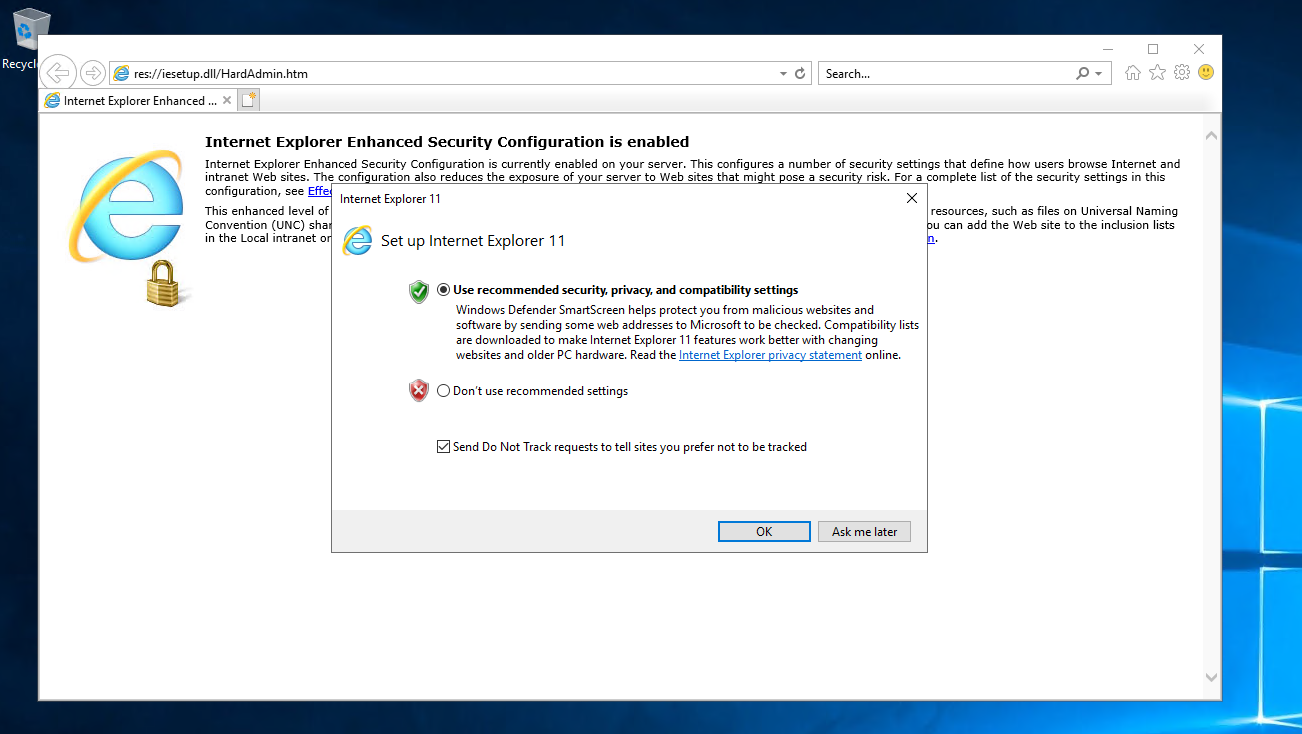
Connect to the remote server. Open Internet Explorer, select the recommended settings and click OK.
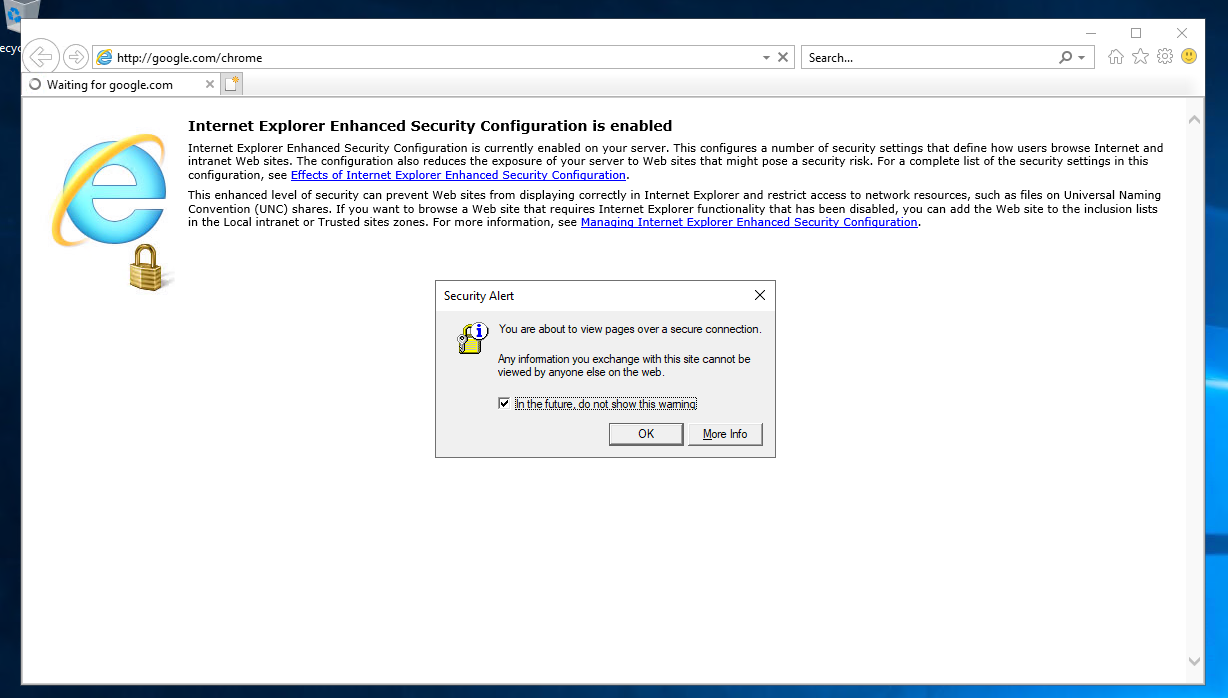
When trying to go to the site page we get another warning, leave the check mark and click OK.
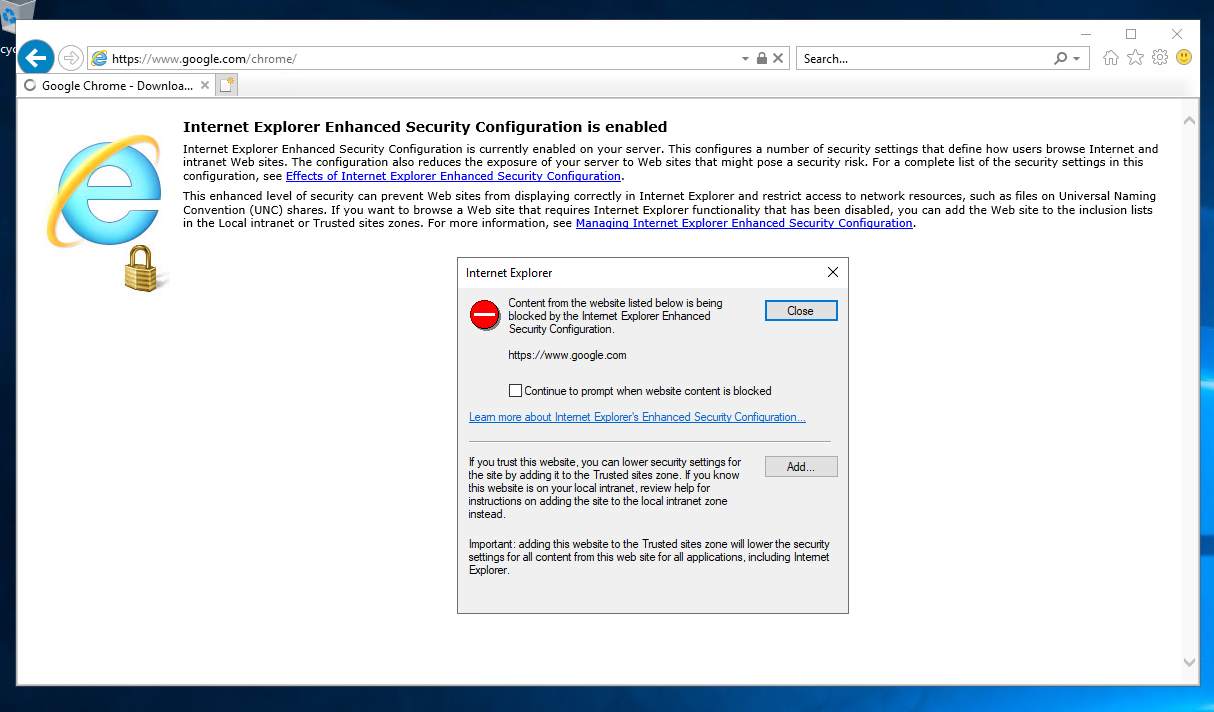
Then the security system also shows an error, uncheck the box that will continue to send warnings and click Close.
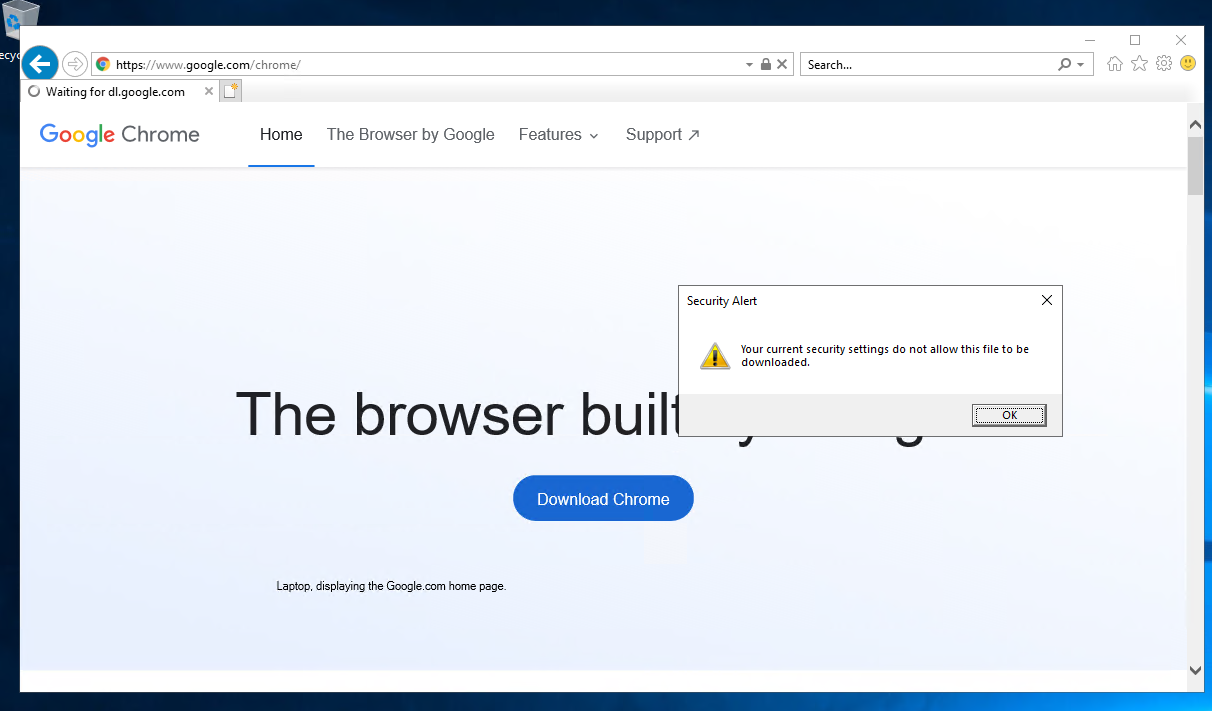
If you try to download the file, you will get a message saying that the security settings do not allow this action, click OK.
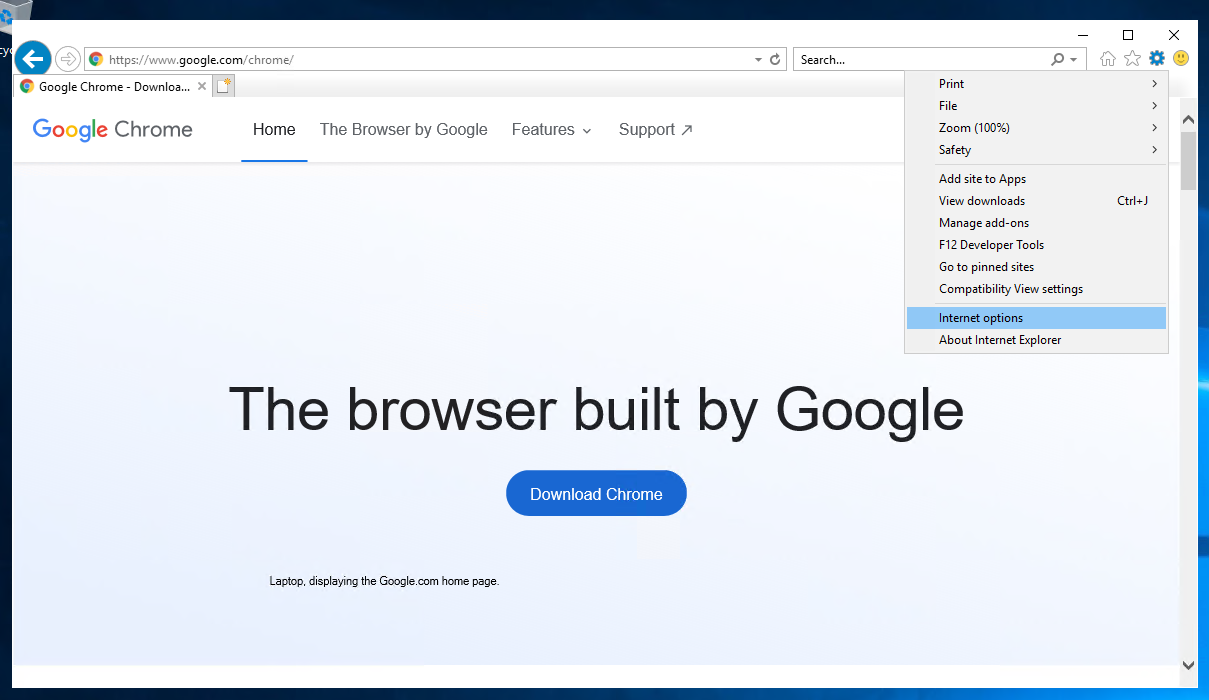
Next we need to find and select the gear in the top corner of the browser. Then click on the Internet options button.
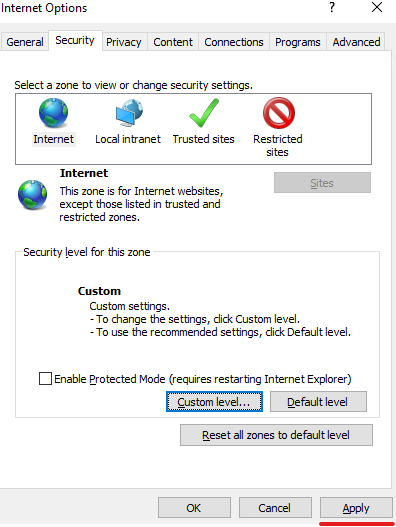
A special window opens in front of us, go to Security.
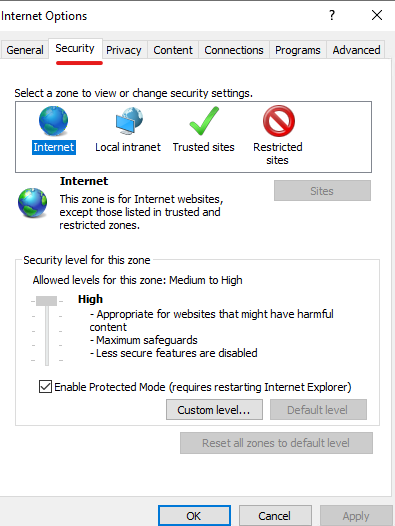
Uncheck Enable Protected Mode and click on Custom level. In the window that opens, scroll down and look for these sections:
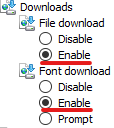
Set both to Enable.
Information
- First - means you can download any files.
- Second - for downloading fonts.
Next, click OK to apply the settings, a warning will pop up:
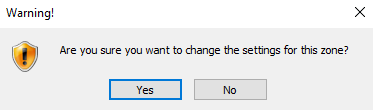
Agree to the changes by selecting the Yes button. In the last settings window, click Apply to fully apply the changes:
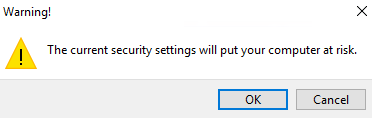
Again we get a warning, agree and close the settings window.
Now we can download any files from websites without any problems. First of all don't forget to install a new browser!
